
Use the MedAire Portal to set the dashboard view, review airport and city risk information, and generate a report for a location briefing.
In this guide
- Sign in
- Set the dashboard view
- Review a location
- Generate a report
Sign in to the MedAire Portal
Go to app.medaire.com and enter your credentials.
- Use the email address associated with your Portal account.
- If you cannot sign in, use the password reset guide.
- After signing in, begin from the map-based dashboard.
Set the information shown on the dashboard
Use the dashboard filter bar to show only the layers needed for the task at hand. Fewer layers can make the map easier to read during a focused review.
- Airports
- Alerts
- Airspace
- Weather
- GNSS
- Fleet
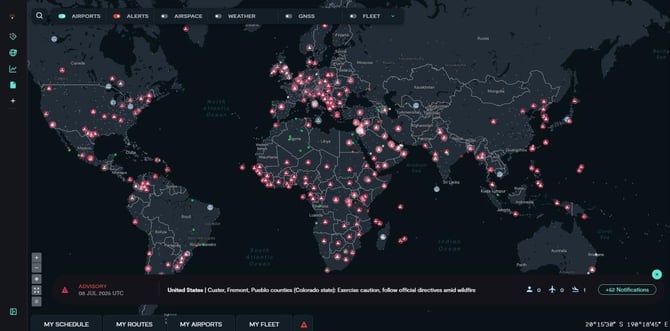 The dashboard keeps the main map layers in one filter bar.
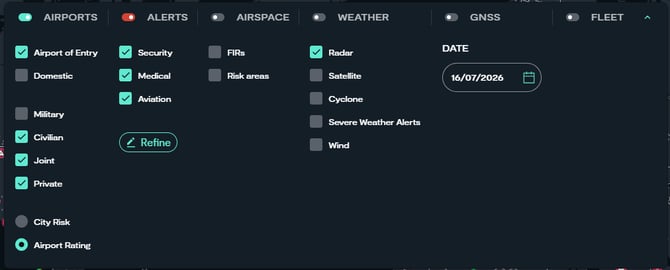 Expand the filter to refine airport, alert, airspace and weather information.
Review an airport, city or country
Open a location from the map or My Airports, then use the Airport Panel tabs to move between the available views.
- Airport: review the airport rating and operational information.
- City: review Security and Medical ratings and the factors behind them.
- Country: review country-level ratings, advisories and supporting information.
- Airspace: review airspace information when it is available for the location.
When city-level information is available, it appears before country-level information. Review the contributing factors with the overall rating to understand what is influencing the assessment.
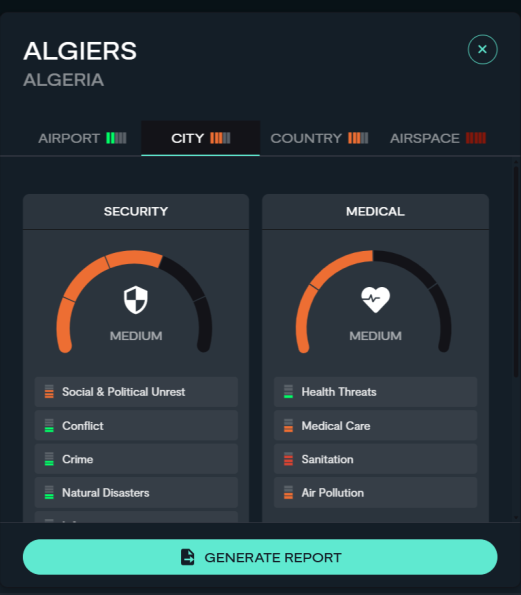 The City tab separates the overall ratings from the contributing factors.
Generate a location report
Select Generate Report from the relevant location panel. The report prioritizes city and airport information when it is available and includes the factors behind the displayed risk ratings.
- Confirm that you opened the intended airport, city or country.
- Review the on-screen ratings before generating the report.
- Use the downloaded report to support a location briefing or detailed review.
Interface note: Portal screens can change as features are updated. If a label has moved, use the current on-screen prompt and the July 2026 update guide below.
