
Use Crew Check in the MedAire Portal to maintain crew and aircraft records, message affected crew, and request a check-in from one operational view.
Before you begin: Screens and available options can vary by account configuration. Follow the prompts shown in your Portal and contact your MedAire representative if Crew Check is not visible.
In this guide
- Open Crew Check
- Maintain crew records
- Maintain aircraft records
- Message crew
- Keep records current
Sign in and open Crew Check
Sign in at app.medaire.com, then open Crew Check from the Portal navigation available to your account.
- Begin from the main Portal dashboard.
- Open Crew Check before editing crew or aircraft records.
- Confirm that the organization shown is the one you intend to update.
Add or update a crew member
- Open Organizational Settings.
- Select Crew, then choose Add Crew.
- Enter the requested name and contact information.
- Add the role when it is useful for identifying the crew member.
- Select Add Crew Member, then confirm the record appears in the crew list.
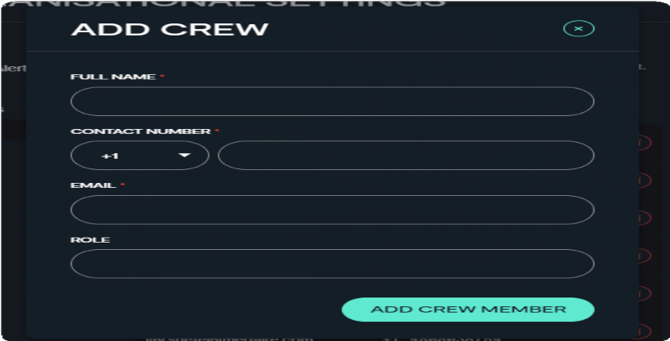 The Add Crew form requests only the information needed for the record.
Add an aircraft
- Open Organizational Settings.
- Select Fleet.
- Enter a tail number and select Add Tail.
- For a larger update, use the on-screen bulk upload option and follow its file instructions.
- Review the fleet list after saving the change.
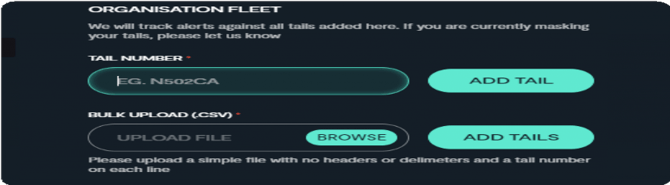 Add one tail number directly or use the upload option shown in the Portal.
Message crew and request a check-in
- Open the relevant alert in Crew Check.
- Review the crew and aircraft shown for that alert.
- Select Message Crew.
- Add the event details needed for the message.
- Select Request Check-In when you need a status response.
- Review the recipients and message before selecting Send Message.
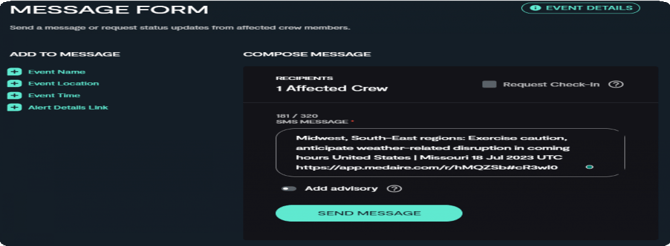 Add the relevant event details before sending.
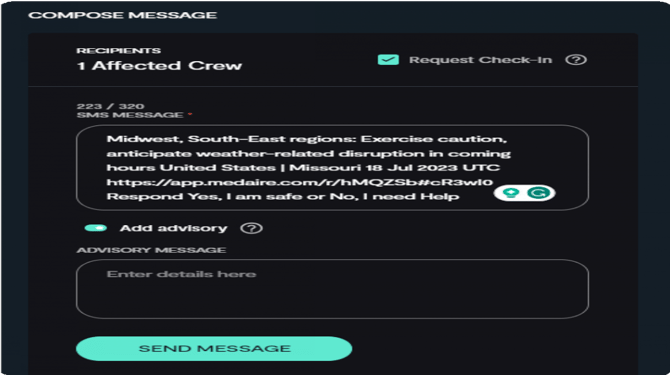 Request Check-In adds a clear status request to the message.
Keep Crew Check records current
Review the records regularly and update them when:
- An aircraft is added to or removed from the operation.
- A crew member joins, leaves or changes assignments.
- A phone number or email address changes.
- Another operational change affects the information shown in Crew Check.
